Task Management User Guide: Create, Edit, and Track Tasks
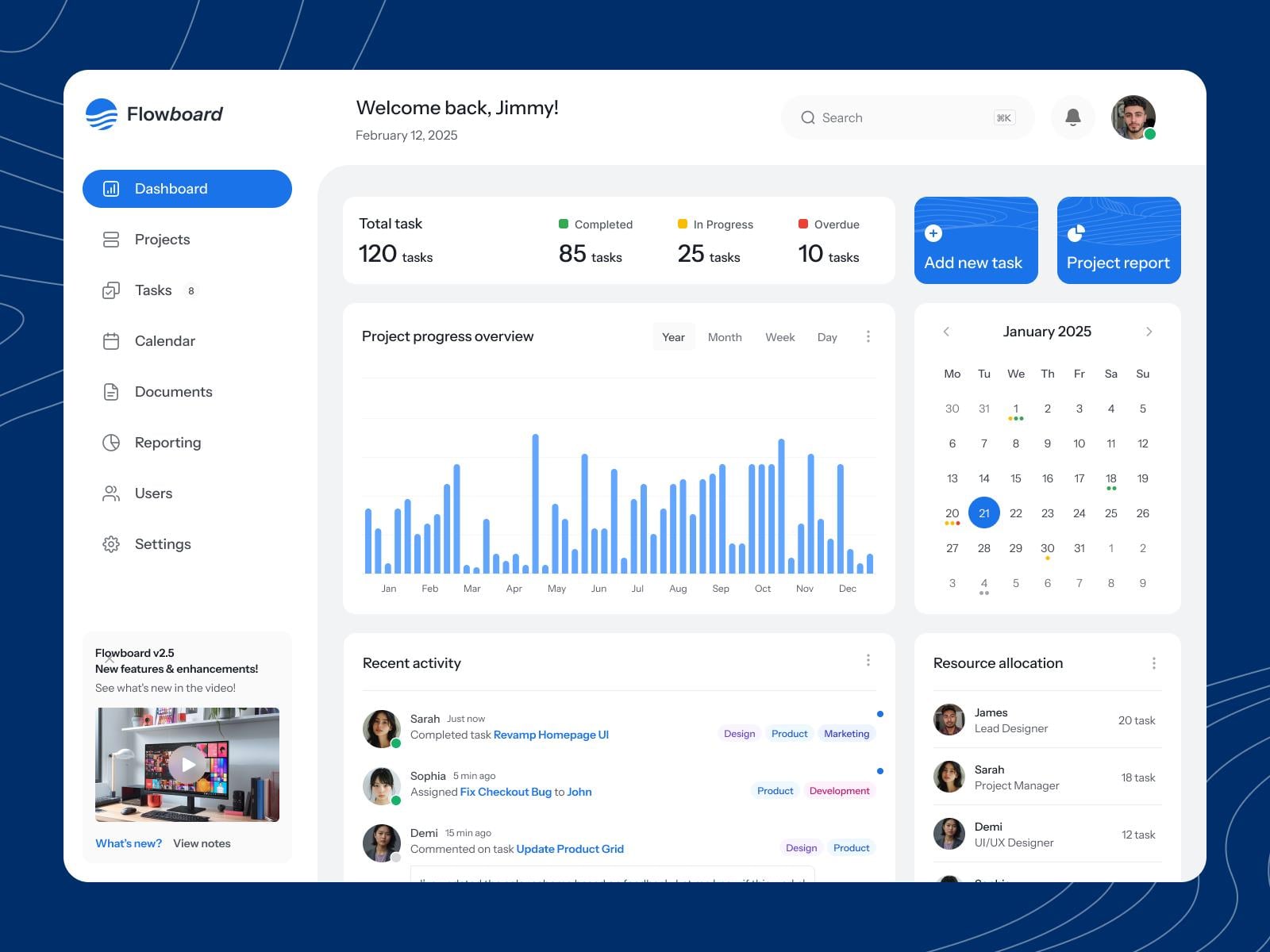
TaskNest User Guide: Create, Organize, and Track Your Tasks
TaskNest is a fictional task management application used in this guide to demonstrate product documentation.
This guide explains how to create a task, update its details, find specific work, and mark tasks as complete. The interface and features described here are illustrative, not documentation for an existing product.
1. Create your first task
Use a task to record something that needs to be done.
Open your TaskNest workspace.
Select New task.
Enter a short, descriptive title.
Add a due date or description if those fields are available.
Select Save.
Your task should appear in the task list.
Tip: Use action-oriented titles such as "Review the campaign draft" rather than vague labels such as "Campaign." A specific title makes the next action easier to understand.
If the task does not appear, check whether it was saved successfully and whether a filter is hiding it.
2. Update a task
Task details often change as work progresses.
Find the task you want to update.
Open the task.
Edit the relevant fields.
Save your changes.
Review the updated details to confirm that the correct task was changed.
If you cannot find an edit option, check whether you have permission to modify the task or whether the application uses a different menu for editing.
3. Mark a task as complete
When a task is finished:
Locate the task in your list.
Select its completion control or choose the equivalent Mark complete action.
Confirm that the task's status changes.
Depending on the application's settings, completed tasks may remain visible, move to a separate view, or disappear from the current list.
If you mark a task complete by mistake, look for an option to reopen it or restore its previous status.
4. Find a specific task
A growing task list becomes difficult to scan manually. Use the available search and filter controls to narrow the results.
Search by keyword
Enter a distinctive word from the task title, if search is available.
Filter by status
Choose a status such as open or completed if the application supports status filters.
Filter by date or assignee
Use these filters when you need to find work assigned to a particular person or due within a specific period.
Search and filtering behavior varies by product. If a task is missing, clear the active filters and search again using a broader term.
5. Understand common task states
A task's status helps you understand where the work stands.
| Status | Meaning |
|---|---|
| Open | The task has not been completed |
| In progress | Work has started but is not finished |
| Completed | The task has been marked as finished |
These are example statuses. An actual TaskNest implementation would need to define which states are available and how users change between them.
6. Common questions
I created a task, but I cannot see it. What should I do?
Clear any active filters, search for a distinctive word in the title, and refresh the list if necessary. If the task remains missing, check for a save error or contact your workspace administrator.
Can I change a task after saving it?
The intended workflow in this example allows users to edit saved tasks. In a real product, the available actions may depend on the user's permissions.
What happens when I complete a task?
Its status changes to completed. Whether it stays in the current list depends on the product's display and filtering settings.
Can I recover a task I marked complete accidentally?
Look for a reopen or undo action. If the product does not offer one, consult its support documentation.
7. Tips for keeping your task list useful
Write titles that describe an action.
Add due dates when timing matters.
Review overdue tasks regularly.
Use available filters to separate current work from completed work.
Update task status as work progresses.
A task list is most useful when it reflects the current state of the work. Keeping titles clear and statuses accurate helps everyone understand what needs attention.
Need more help?
If you cannot complete an action, record what you were trying to do, what happened instead, and any error message displayed. Include the relevant task identifier if the product provides one, but avoid sharing passwords or sensitive information.
Clear details make it easier for a support team to investigate the issue.
About the author
- I'm a frontend and mobile developer, technical writer, and SEO specialist passionate about making technology easier to understand. I write practical, beginner-friendly articles on JavaScript, React, React Native, web development, APIs, and developer tools. My goal is to turn complex technical concepts into clear explanations, useful tutorials, and well-structured documentation that developers can apply in real projects. Through my writing, I aim to help developers learn, solve problems, and build better digital experiences.
Comments
Join the discussionNo comments yet. Be the first to comment.